Connect Crazy Domains Account to Your Google or Facebook Login
This article explains how to connect your Crazy Domains account with your Google or Facebook login credentials. It provides steps to enable social login through the account security settings, as well as instructions for disconnecting the link when it is no longer needed.
Connecting Social Logins to Your Account
- Go to your account Security Settings.
- Scroll down to the Social Logins section.
- Click the toggle button to connect to the social login you prefer — Facebook or Google.
- A sign-in window will appear. Enter your Facebook or Google password, and then continue to connect.
Note: If you're currently signed in to your Facebook or Google account in another tab, the system will automatically detect that and will ask you to connect right away.
- Scroll up and enter your Current Password.
- Scroll down, and then click SAVE.
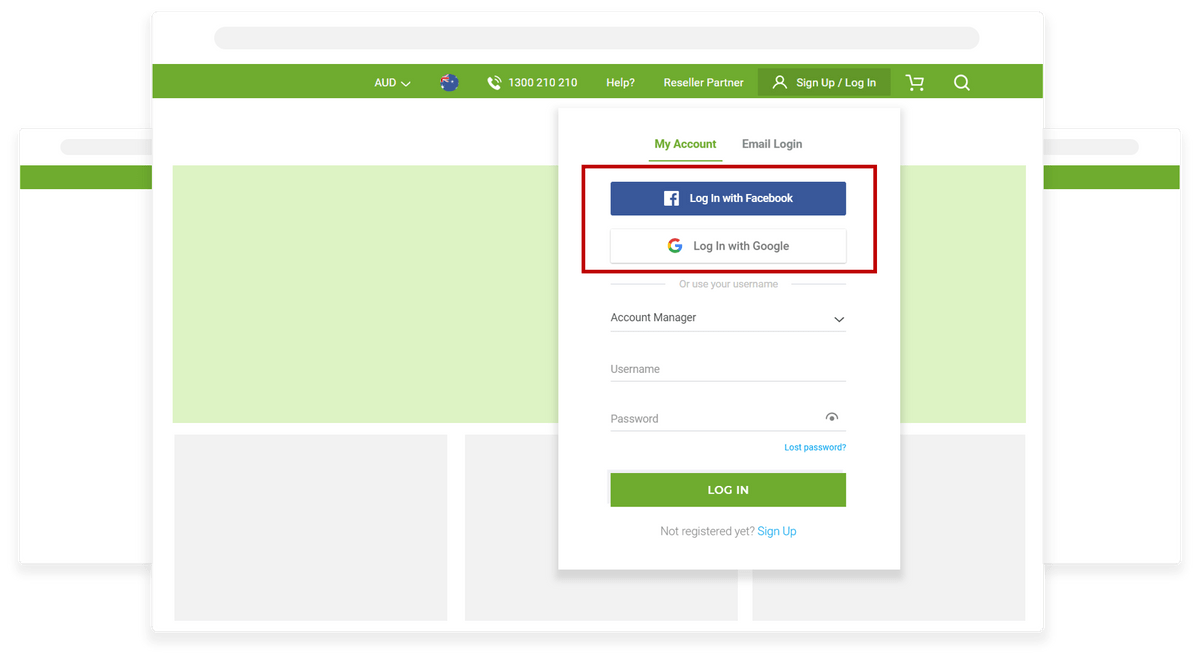
You can now use the Log In with Facebook or Log In with Google options.
Disconnecting Social Logins from Your Account
To disconnect your account from your social media logins, go back to the social login settings and then click the toggle button to disconnect.
After disconnecting your social logins, you can now use your official Crazy Domains login information to access your Account Manager again.
Note: Facebook will automatically save any Apps and Websites you connect to. Go to Facebook's guide on how you can completely remove Crazy Domains from your account.