Knowledge Base
Categories: Microsoft Email Exchange
Disabling Outlook Exchange Spam Filter
This article explains how to disable the spam filter for an Exchange mailbox using Outlook Web Access (OWA). It provides the steps to access the junk email settings in OWA and turn off filtering, so that incoming messages are delivered to the Inbox without being moved to the Junk folder.
Enable/Disable Spam Filter
You can enable or disable the Outlook Exchange Spam Filter by doing the following:
- Sign in to your Outlook Web Access.
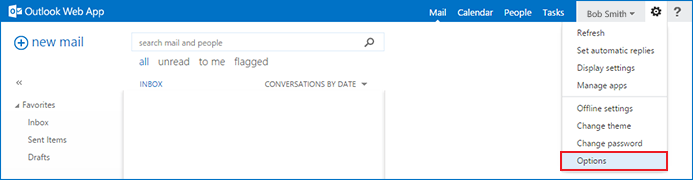
- Next to your name in the top right corner select the Gear Icon.

- Click Options.
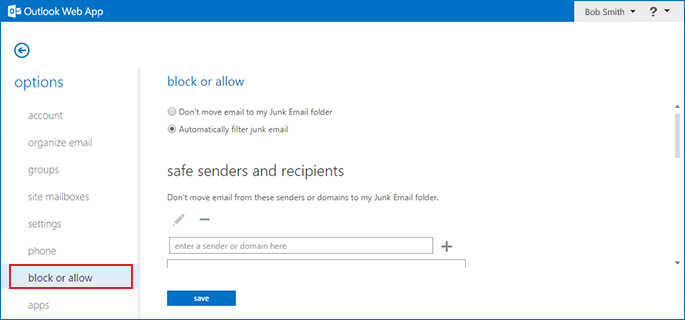
- Click Block or Allow on the left menu.
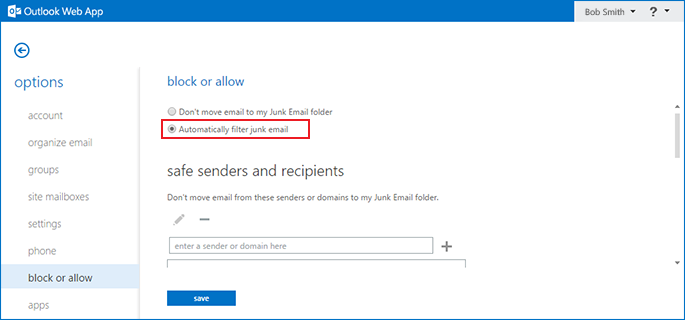
- Click Automatically Filter Junk Email to turn the Spam Filter on or off.
- Click Save.
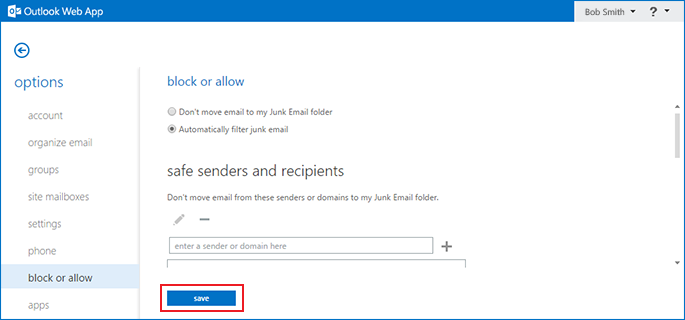
Your spam filter settings have now been set.
Did you find this article helpful?