Knowledge Base
How To Add a Signature on Webmail
An email signature is a block of text that is automatically added at the end of outgoing emails in Webmail. It can include details such as your name, contact information, or other relevant identifiers.
This article explains how to add or update an email signature in Webmail to ensure it appears on your outgoing messages.
Adding a text-based email signature
- Access your Webmail.
- In the left menu, click Settings.
- Select Identities, then click on your email address.
- In the Signature box, enter your desired signature details, such as:
- Your name
- Your job title
- Company name
- Phone number
- Email address
Example:
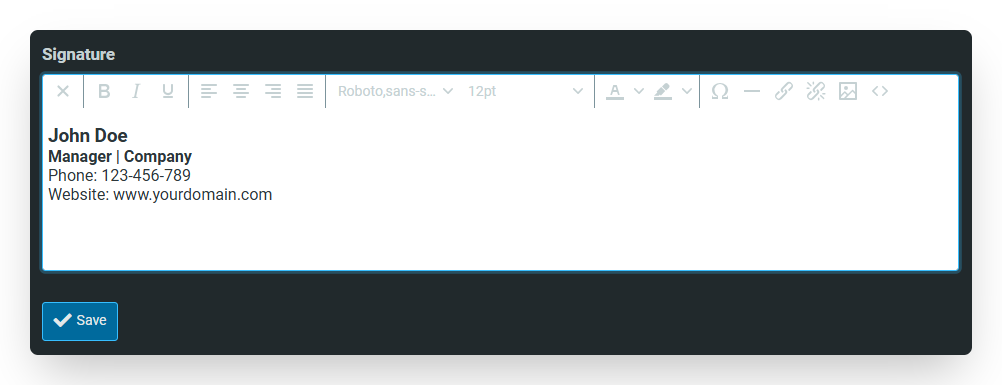
- Click Save to apply your changes.
Adding an image to your email signature
- Access your Webmail.
- In the left menu, click Settings.
- Select Identities, then click on your email address.
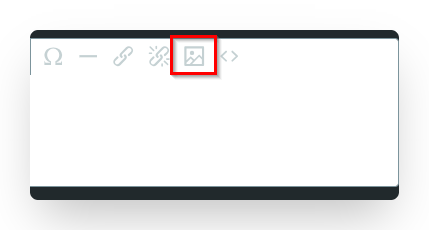
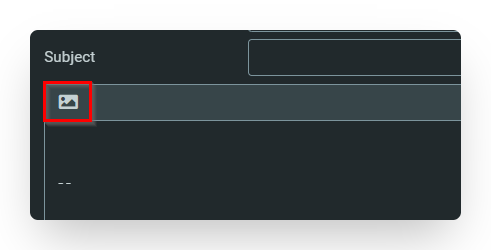
- In the Signature box, click the Image icon.
- Click the Source icon to upload your image.
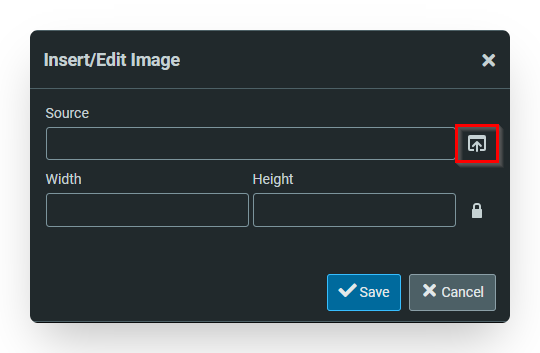
NOTE. The maximum file size for images is 64 KB.
- Select the image, adjust its width and height as needed, and click Save.
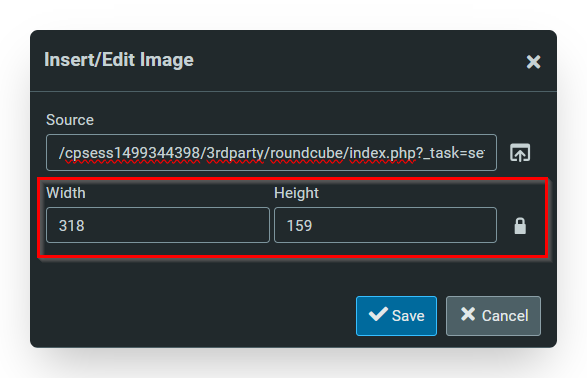
- Click Save to apply your changes.
Sending an email with your signature
After setting up your signature, send a test email to ensure it appears correctly.
- Text-based signature: Your signature will automatically appear in the email.
- Image-based signature: Click the Image icon to enable the image before sending your email.
Did you find this article helpful?