Knowledge Base
Categories: Microsoft Email Exchange
How To Add Email Signatures in OWA
This article explains how to add an email signature in Outlook Web Access (OWA). It includes steps for accessing signature settings, customizing text formatting and font options, attaching a company logo, and setting up the signature to be automatically included on future emails.
How to add Email Signatures in OWA
Follow the steps below to add email signature in OWA.
- Log in to your Outlook Web Access.
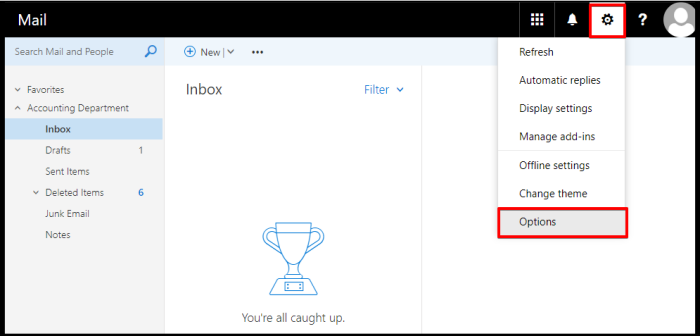
- Click on the Settings/Gear Icon at the top right corner of the page then select Options.
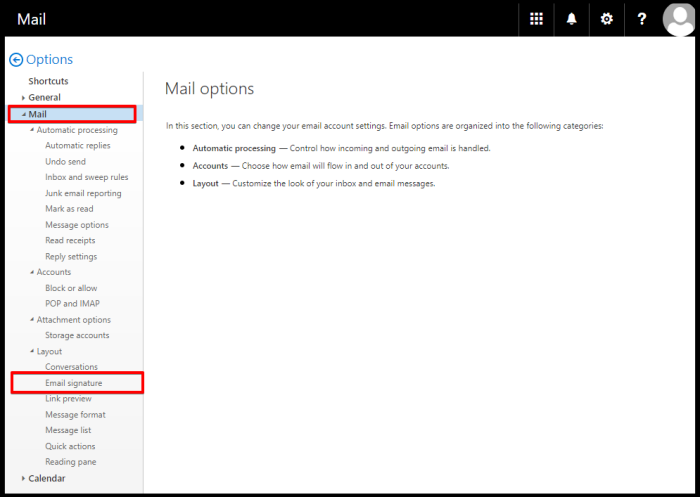
- Select Mail from the left-side menu, go to Layout and click Email signature option.
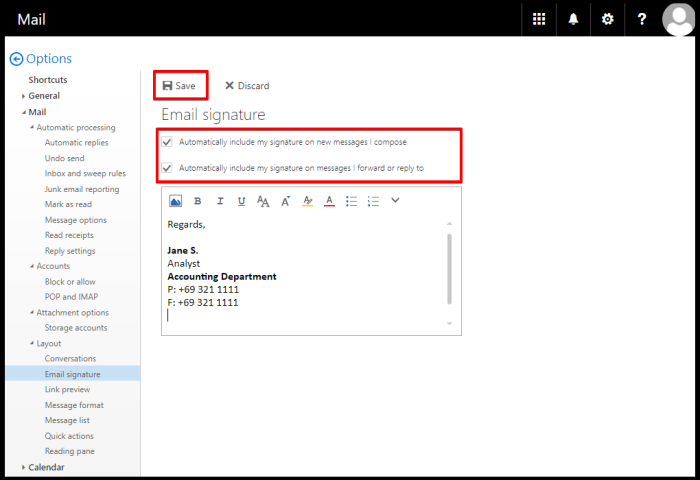
- Enter your Email Signature in the text box provided and customise details to:
- Font Style, Font Size, Font Text, and Font Color
- Attach Company Logo
- Select the check boxes to automatically include the email signature to your future emails, then click the Save button to apply changes.
Did you find this article helpful?