Knowledge Base
How To Configure Email Filters: cPanel
This article explains how to configure email filters in cPanel. It describes how to access the Email Filters section, select a specific email address, and create a new filter by defining a filter name, setting conditions (rules), and specifying actions to apply when incoming messages match those rules.
Creating New Email Filters
- Log in to your cPanel.
- Go to EMAIL section and click Email Filters.
- Click Manage Filters for the email address that you want to configure.
- Click Create a New Filter to open the Email Filters settings.
- Fill out the needed information for the settings.
Filter Name This will be the name of the filter you will create.
NOTE: Make sure you choose a unique filter name you have not used before.
Rules This will set the conditions of your filter. Select the field where you want to set the condition and then enter the value, characters, or words you want to set for it.
ex. Subject contains spam.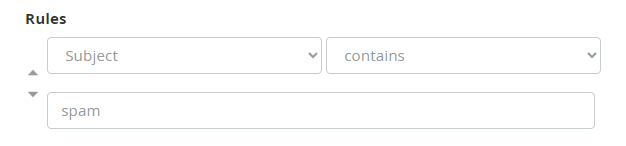
Actions The action you want to implement if the email you receive meets the rules you have specified above. - Click Create to save the settings.
Did you find this article helpful?