How To Increase Your cPanel Email Storage Limit
Email accounts include a set storage limit that determines how much email data, including messages and attachments, can be stored within the mailbox. This limit helps ensure stable performance and consistent email handling across accounts.
This article explains how to increase the storage limit of an email account in Hosting Manager. It provides guidance on updating mailbox quota settings so you can adjust available storage to suit your email usage needs.
NOTE. This guide is applicable for the following hosting products with cPanel:
- Linux Hosting
- Business Hosting
- Website Builder
- eCommerce Builder
- WordPress Hosting
- WooCommerce Online Store
If you are using Windows Hosting, please refer to the guide for increasing mailbox storage in Plesk
If you are using Email Exchange, please refer to the guide for changing mailbox plans in Email Exchange
What Is a Mailbox Quota?
The mailbox quota is the amount of space assigned to a virtual mailbox. This determines the amount of emails your mailbox can store. The mailbox quota is measured in megabytes (MB).
When your mailbox reaches its quota:
- New incoming emails will bounce back to the sender
- Your mailbox will stop receiving emails until space is freed or increased
Increasing Your Email Account’s Mailbox Quota
So that you can be sure to receive all your incoming emails, it is best that you increase your mailbox quota. To change your mailbox quota, follow the steps below:
- Log in to your cPanel.
- Click Email Accounts under Email.
- Click the corresponding Manage button of the email account to update.
- Scroll down to Allocated Storage Space and enter the desired value of MB storage in the box or choose Unlimited.
NOTE. Choosing Unlimited will still be up to the storage of your hosting package.
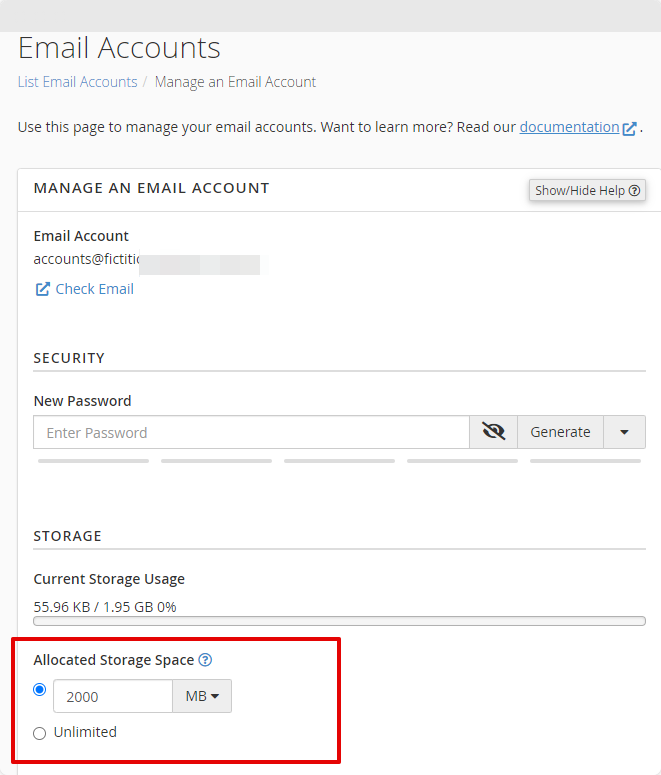
- Scroll down and click the Update Email Settings button.
Additional Information
You cannot set a mailbox quota that exceeds what your hosting has provided. Moreover, because of certain mail server limitations, you cannot set a quota that exceeds 4096000 megabytes (4TB or 4096 GB). If you want to set a quota that exceeds that number, you just select Unlimited.
Also, take note that your trash folder is not included in the calculation of your mailbox quota.
If you want to free up some space, make sure to check and delete mails from Inbox and Sent folders. However, be aware that deleted emails, especially those from the Deleted folder, cannot be retrieved. So make sure you don’t need them anymore before you permanently delete them.