Knowledge Base
How To Set Up Email Forwarders: cPanel
Email forwarding automatically redirects incoming messages from one email address to another. This feature allows you to manage multiple email addresses from a single mailbox or route emails to a different recipient. To enable the feature, follow the steps below.
Adding Email Forwarders
- Log in to your cPanel.
- Go to EMAIL section and click Forwarders.
- Click Add Forwarder.
- In the Address to Forward field, enter the email address (without the domain) that you want the forwarder to be configured to use.
- In the Domain field, select the domain name of the email address that you want to configure. This is only applicable if you have multiple domain names in your cPanel.
- On the Destination, select one of the following options:
- Forward to Email Address. Select this if you want the email to be forward to another email address. Make sure to specify the email address in the box provided.
- Discard and send an error to the sender (at SMTP time). Select this option if you want to discard messages instead. You can specify an error message in the box provided. This is helpful if you want to stop receiving emails from a specific email address in your cPanel.
- Click the Add Forwarder button to save the new forwarder.
Removing Email Forwarders
- Log in to your cPanel.
- Go to EMAIL section and click Forwarders.
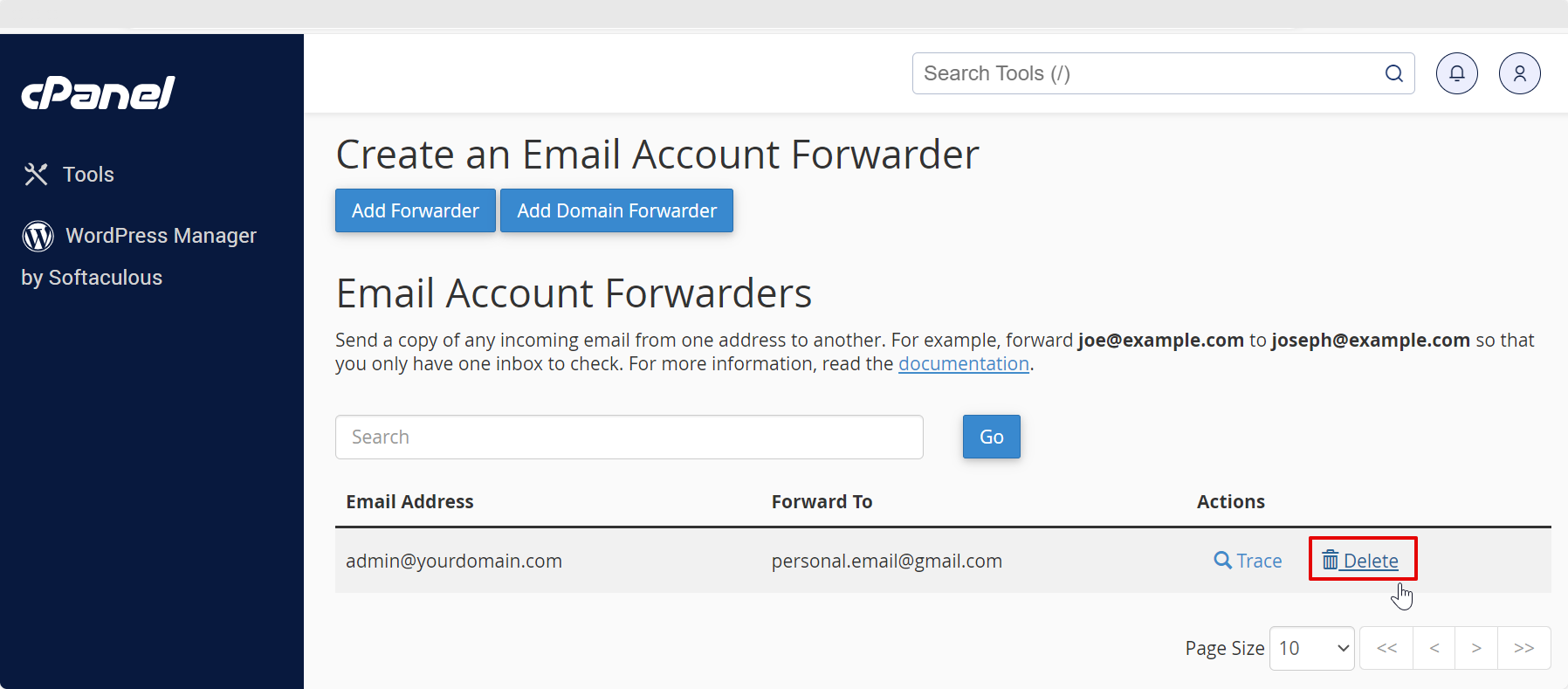
- Under Email Account Forwarders, manually look or search for the forwarder to delete in the search box provided.
- Click the corresponding Delete option on the right of the forwarder to delete.
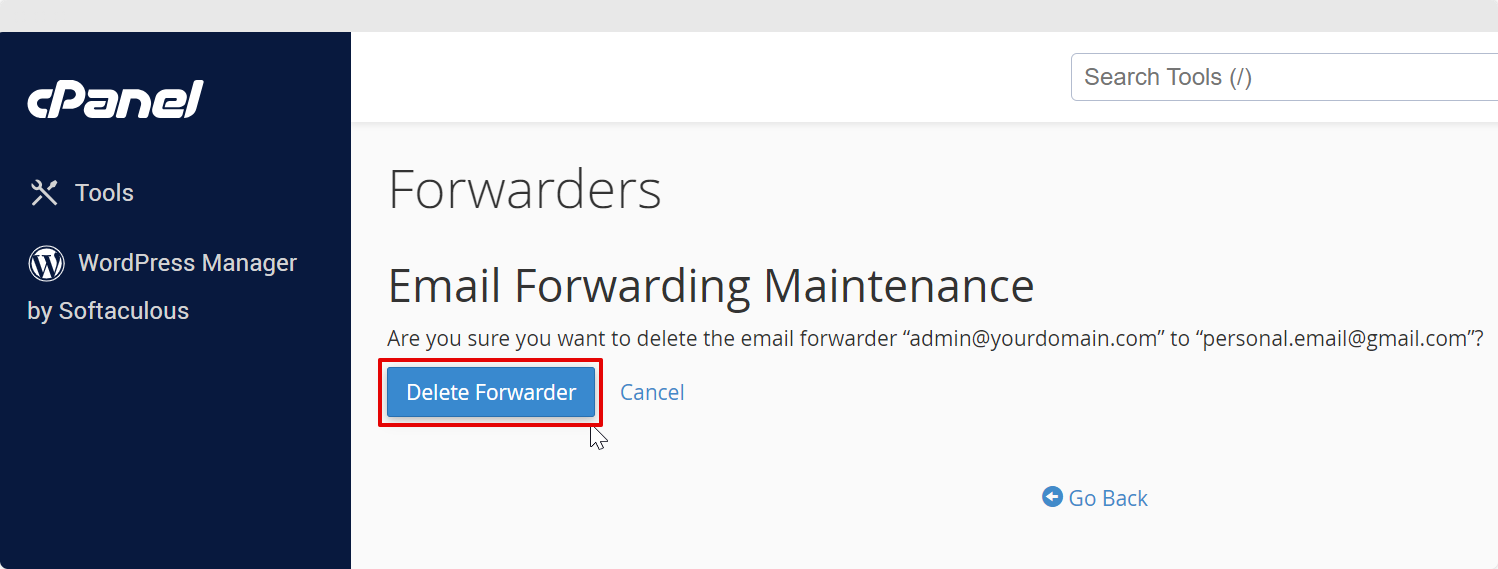
- Click Delete Forwarder to confirm.
A confirmation message will show once the action is successful.

Did you find this article helpful?